
Free Scrolling Ticker Overlay for OBS Studio
Type a message, pick your colors, hit Start — the scrolling text bar appears on your OBS scene in real-time. No restart, no re-adding the source, no touching OBS at all.
A news ticker for OBS that updates the moment you type
- Type any message, any length — there's no character limit
- Control scroll speed and direction live, even mid-stream
- Match your brand with custom text, background, and LIVE badge colors
- Start and Stop instantly without opening OBS
- Free to use right now — no watermark, no paywall
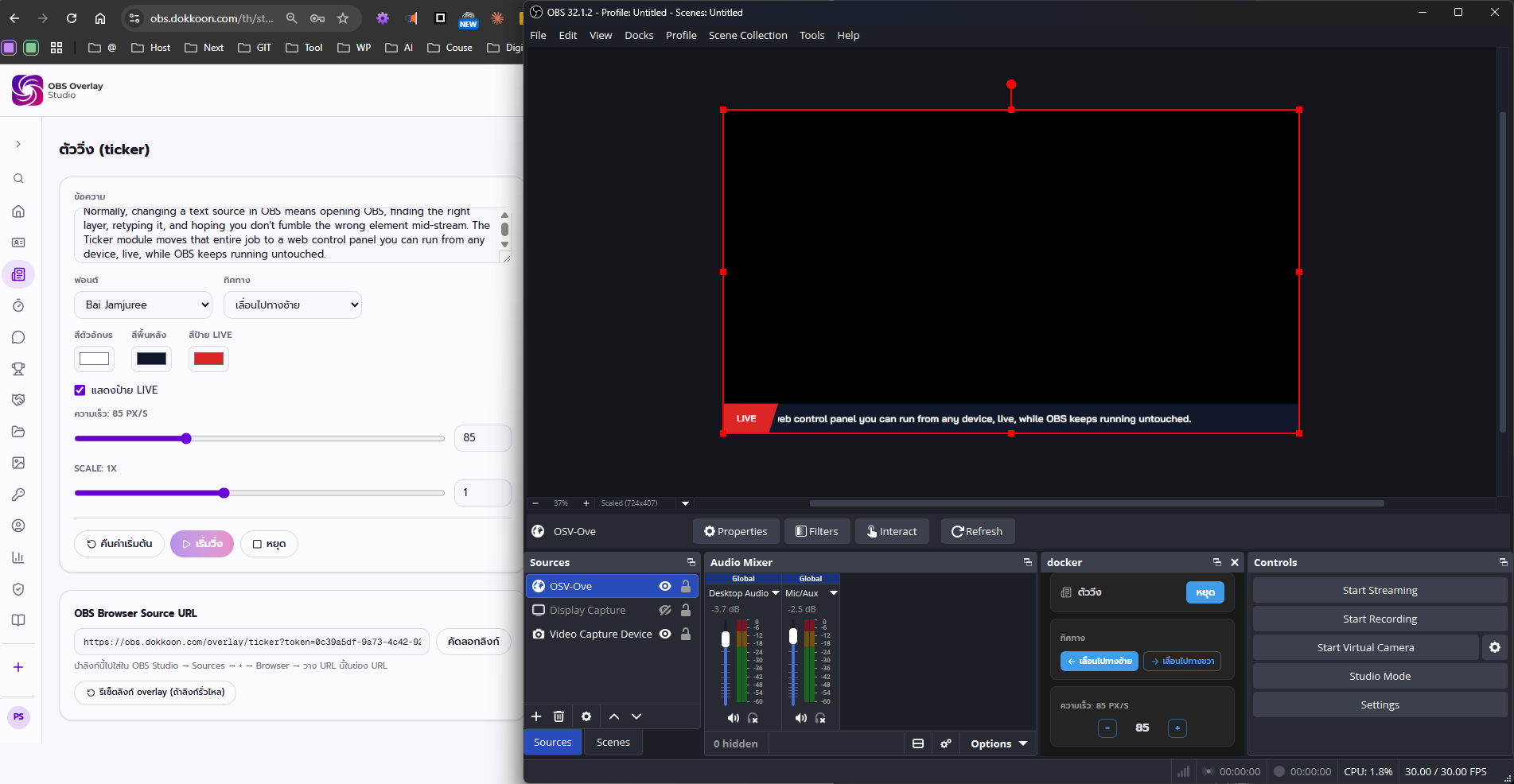
Overview
- What it is
- The Ticker module is a scrolling text bar overlay for OBS Studio — the classic broadcast news-ticker style bar that runs along the bottom of the screen.
- What it's for
- Use it for announcements, welcome messages, sponsor thank-yous, or any running message you want under your main content without covering the frame.
- Who it's for
- Built for streamers, event and church media teams, school sports broadcasters, and anyone running an OBS scene who needs on-screen text they can edit without touching OBS itself.
- The problem it solves
- Normally, changing a text source in OBS means opening OBS, finding the right layer, retyping it, and hoping you don't fumble the wrong element mid-stream. The Ticker module moves that entire job to a web control panel you can run from any device, live, while OBS keeps running untouched.
Features
Unlimited-length scrolling text
Type any message — a short line or a long paragraph — and it scrolls smoothly across the bottom of the screen.
You're never boxed into a fixed-width text box the way you would be with a native OBS text source.
Example: Run a multi-line church announcement or a full sponsor list in one ticker without truncating anything.
Speed and direction control
Set the scroll speed in pixels per second and choose whether the text scrolls left or right.
Match the pacing to your content — slower for readability, faster for a busy highlights crawl.
Example: Slow the speed down for a countdown-style church greeting, then speed it up for a fast sports score crawl.
Full color control
Set the text color, background color, and the color of the LIVE badge chip independently of each other.
Match the ticker to your channel's branding or an event's color scheme in seconds, no design tools needed.
Example: Set a school's team colors as the ticker background and text color for a football match broadcast.
Optional LIVE badge
Show or hide a small LIVE badge chip next to your ticker text, with its own independent color.
Add broadcast credibility for genuinely live moments, or hide it for pre-recorded or edited content.
Example: Turn the LIVE badge on for a live Sunday service stream, and off for an edited highlights recap video.
Instant Start/Stop control
Click Start or Stop in the control panel to show or hide the ticker on stream at any moment.
No need to touch OBS scenes or sources — you control visibility straight from the panel mid-broadcast.
Example: Stop the ticker during a key match moment, then click Start again during a break in play.
Scale slider
Resize the entire ticker bar — text, background, and badge together — with a single Scale slider.
Fit the ticker to different resolutions, or shrink it to leave room for other overlays sharing the scene.
Example: Scale the ticker down when combining it with a football scoreboard overlay on the same OBS scene.
How it works
- 1Type your message — Enter the text you want scrolling on screen — as short or as long as you need, no character limit.
- 2Set speed and direction — Choose how fast the text scrolls and whether it moves left or right.
- 3Style it — Pick a text color, background color, and LIVE badge color (or hide the badge entirely), then adjust the Scale slider.
- 4Click Start — The ticker appears on your OBS overlay instantly. Click Stop any time to hide it again — no OBS refresh required.
OBS Studio integration
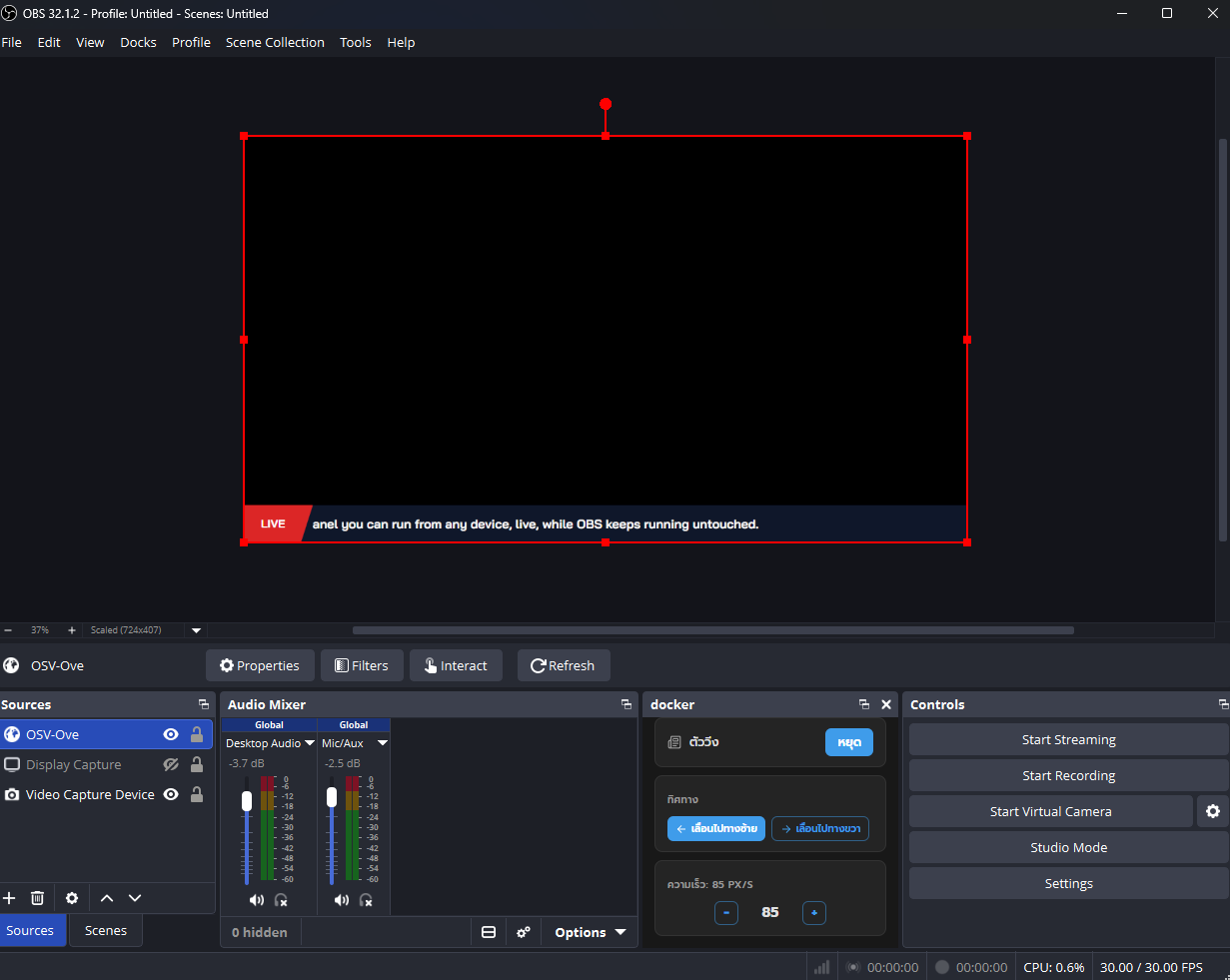
The Ticker overlay is a Browser Source just like any other OBS layer, but it's built to be controlled without ever opening OBS mid-show.
- Add the Ticker overlay URL as a Browser Source and position it at the bottom of your Scene
- Layer it under your main camera or gameplay capture — the page background stays transparent
- Use OBS Studio Mode to preview color and speed changes before pushing them to the live Program view
- Pin the control panel inside OBS itself with the OBS Custom Browser Dock (/dock) — start, stop, and restyle the ticker from inside OBS without Alt+Tabbing to a browser
- Combine the ticker with other modules, like the football scoreboard or comments queue, in the same Scene
- Changes push over WebSocket in real time, so the Browser Source never needs to be refreshed or re-added
Use cases
School and amateur football match commentary
Run team news, next-match info, or sponsor thank-yous along the bottom of a 7-a-side or futsal broadcast without hiring a broadcast crew.
Church and community service announcements
Scroll upcoming event dates, giving information, or a welcome message under a live-streamed service.
New streamer and podcast lower-thirds
Show your social handles, donation info, or today's topic as a running message while you talk to camera.
Sponsor and organizer credit line
Thank event sponsors with a scrolling credit line during a tournament livestream, separate from the rotating sponsor-logo module.
Talk show and panel discussion cues
Run guest names, episode titles, or a question-of-the-day ticker under a multi-camera talk show setup.
Breaking-news style urgent updates
Flip on the LIVE badge and push an urgent message to screen instantly during a live broadcast.
Best practices
- DesignKeep text and background colors high-contrast — light ticker text over a busy camera background can be unreadable.
- DesignUse the LIVE badge sparingly — reserve it for genuinely live moments so it keeps its meaning for viewers.
- PerformanceA very long message at a slow scroll speed takes a long time to fully cycle — balance message length against speed so viewers actually see the whole thing.
- PerformanceIf the ticker is running alongside several other overlay modules in one Scene, keep the Scale slider modest so layers don't visually compete.
- MobilePreview your ticker's Scale and effective font size against a phone-sized stream preview — text that's readable on a desktop monitor can be too small for mobile viewers.
- MobileRun the OBS Custom Browser Dock on a laptop or tablet next to your OBS window so you can adjust the ticker without reaching for a second device.
- StreamingMatch your scroll direction to other on-screen motion — if a scoreboard or graphic already moves one way, keep the ticker consistent with it.
- StreamingTest Start/Stop timing before going live so you know exactly how long a new message takes to complete one full scroll.
Frequently asked questions
Is the OBS Ticker overlay free to use?+
Yes. OBS Overlay Studio is free right now — sign up, open the Ticker control panel at /studio/ticker, and use it with no watermark and no paywall.
Do I need to know how to code to use the ticker overlay?+
No. Everything is controlled from a web control panel — type your text, set colors and speed with sliders and color pickers, and click Start. No code and no OBS scripting required.
How do I add the ticker to OBS Studio?+
Copy your ticker overlay URL from the /studio/ticker control panel and add it as a Browser Source in OBS, the same way you'd add any other browser overlay.
Can I change the ticker text while I'm live?+
Yes. Any change you make in the control panel — new text, new speed, new colors — pushes to your OBS overlay instantly over WebSocket, with no need to refresh the Browser Source.
Is there a character limit on the ticker text?+
There's no fixed limit. Type as much or as little as you need and it scrolls across the screen at whatever speed you've set.
Can I control the ticker without leaving OBS Studio?+
Yes — pin the control panel inside OBS using the OBS Custom Browser Dock (/dock) under Docks → Custom Browser Docks, so you can hit Start/Stop and edit text without Alt+Tabbing to a browser.
Can I hide the LIVE badge next to the ticker text?+
Yes, the LIVE badge is optional. Turn it off entirely if you don't want it, or keep it on and set its own independent color.
Can the ticker scroll right to left, or only one direction?+
You can choose either direction — scroll left or scroll right — from the Ticker control panel, and switch it any time.
Does the ticker overlay have a transparent background?+
The overlay page itself uses a transparent background by default. The visible ticker bar's own background color is controlled separately in the style settings.
Can I use the ticker together with the football scoreboard or sponsor modules?+
Yes — each module is its own Browser Source, so you can layer the ticker with the scoreboard, the sponsor rotator, or any other module in the same OBS Scene.
Related modules
Available from /studio/ticker after logging in