
Free OBS Name Tag & Lower Third Overlay
Add unlimited rows with names, titles, and logos, pick a frame and gradient, then hit Play — your OBS overlay updates over WebSocket with zero refresh.
Introduce every guest with a name tag that updates instantly on OBS
- Unlimited name tag rows, each with its own logo or photo
- Gradient colors, custom fonts, and a Scale slider
- Built-in frames — ribbon, ticket, frosted-glass — or upload your own SVG
- Auto-hide timer, or leave it on screen until you hide it
- Control it without leaving OBS via the Custom Browser Dock
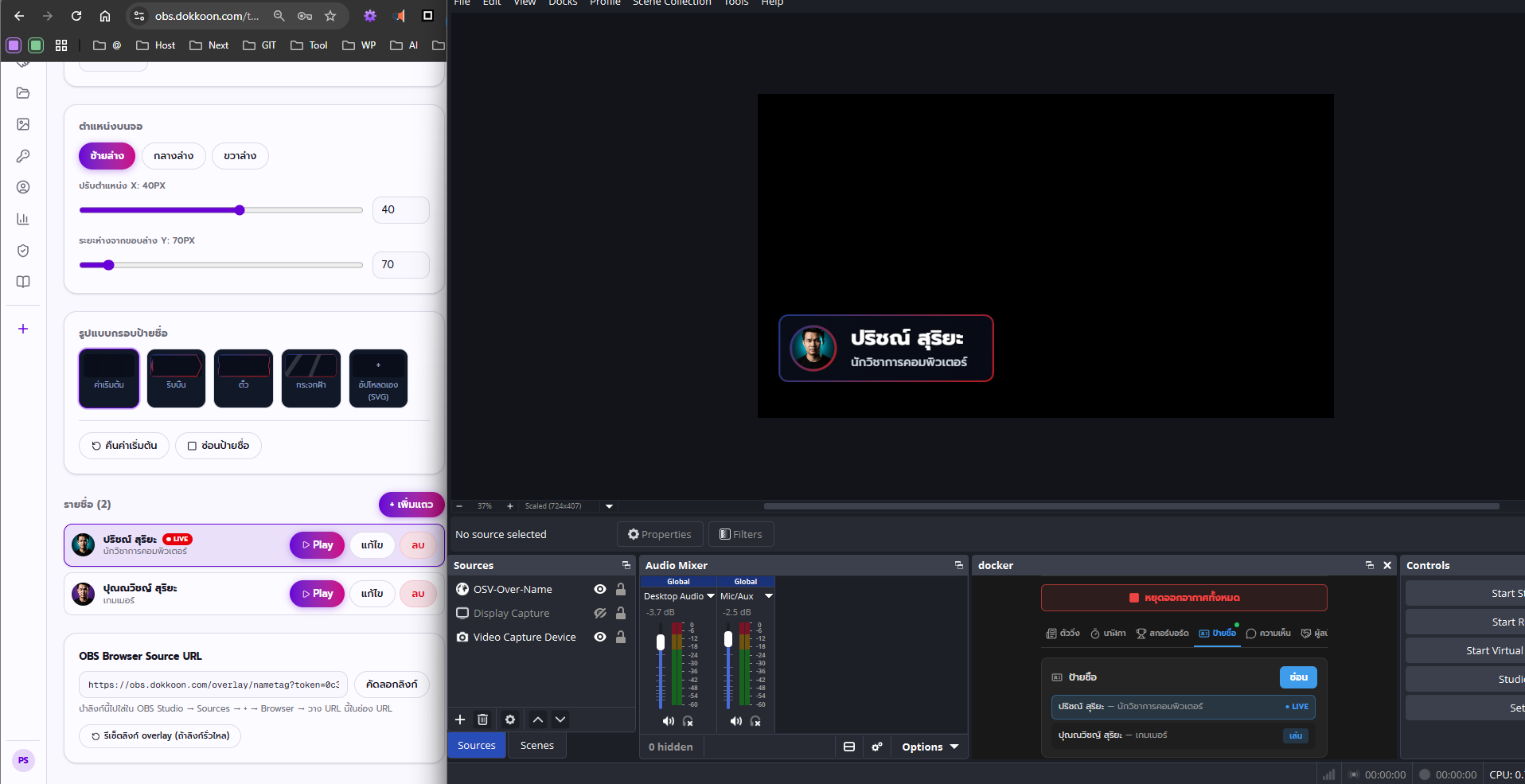
Overview
- What it is
- The Name Tag module is a broadcast-style lower third for OBS Studio: a name, title, and logo that appears at the bottom of the screen while a guest, speaker, or host is on camera.
- What it's for
- Use it to introduce guests on a stream, tag speakers at an event, or label players and coaches during a match — anything where the audience needs a name and role on screen.
- Who it's for
- Built for streamers, church and event media teams, school sports broadcasts, podcast hosts, and anyone running an OBS scene who needs a clean, professional name tag without editing video.
- The problem it solves
- Typing a guest's name into a static OBS text source, or re-exporting a graphic every time a new speaker sits down, is slow and looks amateur. The Name Tag module fixes that with rows you prepare once and trigger live.
Features
Unlimited rows
Add, edit, or delete as many name tag rows as you need, each with its own name, title/position, and uploaded logo or photo.
Prep your entire guest list or lineup ahead of time and just click through it during the show.
Example: A podcast with three guests preps three rows before recording, then plays each one as the conversation moves to that person.
Gradient colors and fonts
Pick a start color and an end color for a gradient background, choose a font, and fine-tune the size with a Scale slider.
Match the name tag to your brand or stream theme without needing a design tool.
Example: A gaming stream sets a purple-to-blue gradient to match its overlay theme.
Frame presets and custom SVGs
Choose from built-in frame styles — default, ribbon, ticket, or frosted-glass — or upload a completely custom SVG frame.
Get a polished, on-brand look immediately, or bring a fully custom design if you already have one.
Example: A school sports broadcast uses the ticket frame for players; an event with a designed brand kit uploads its own SVG frame.
Anchor position and offsets
Choose bottom-left, bottom-center, or bottom-right as the anchor, then nudge the exact placement with additional X and Y pixel offsets.
Fit the name tag into a scene layout that already has a webcam, logo, or other overlay elements in it.
Example: A talk show keeps the webcam bottom-right and anchors the name tag bottom-left so the two never overlap.
Auto-hide timer
Set a number of seconds for the name tag to stay on screen before it disappears automatically, or set it to 0 to leave it up until you hide it manually.
Introduce a guest for a few seconds without having to remember to click hide.
Example: A church service sets an 8-second auto-hide so a speaker's name tag clears itself before the sermon starts.
Instant Play/Hide
Click Play on any row and it appears on the OBS overlay immediately over WebSocket; click Play again or hide it to remove it.
No OBS refresh, no re-adding a Browser Source, no dead air while you fumble with scenes.
Example: A live match adds a substitute mid-game — the operator adds a row and plays it while the camera stays on the pitch.
How it works
- 1Add a row — Enter a name, title/position, and optionally upload a logo or photo for the person.
- 2Style it — Pick a font, set your gradient start and end colors, choose a frame, and adjust the Scale slider.
- 3Position it — Pick an anchor (bottom-left, bottom-center, bottom-right) and fine-tune with X/Y offsets so it sits where you want in the scene.
- 4Set auto-hide (optional) — Enter a number of seconds to auto-hide the tag, or leave it at 0 to control it manually.
- 5Click Play — The name tag appears on the OBS overlay instantly. Click Play again or hide it when you're done.
OBS Studio integration
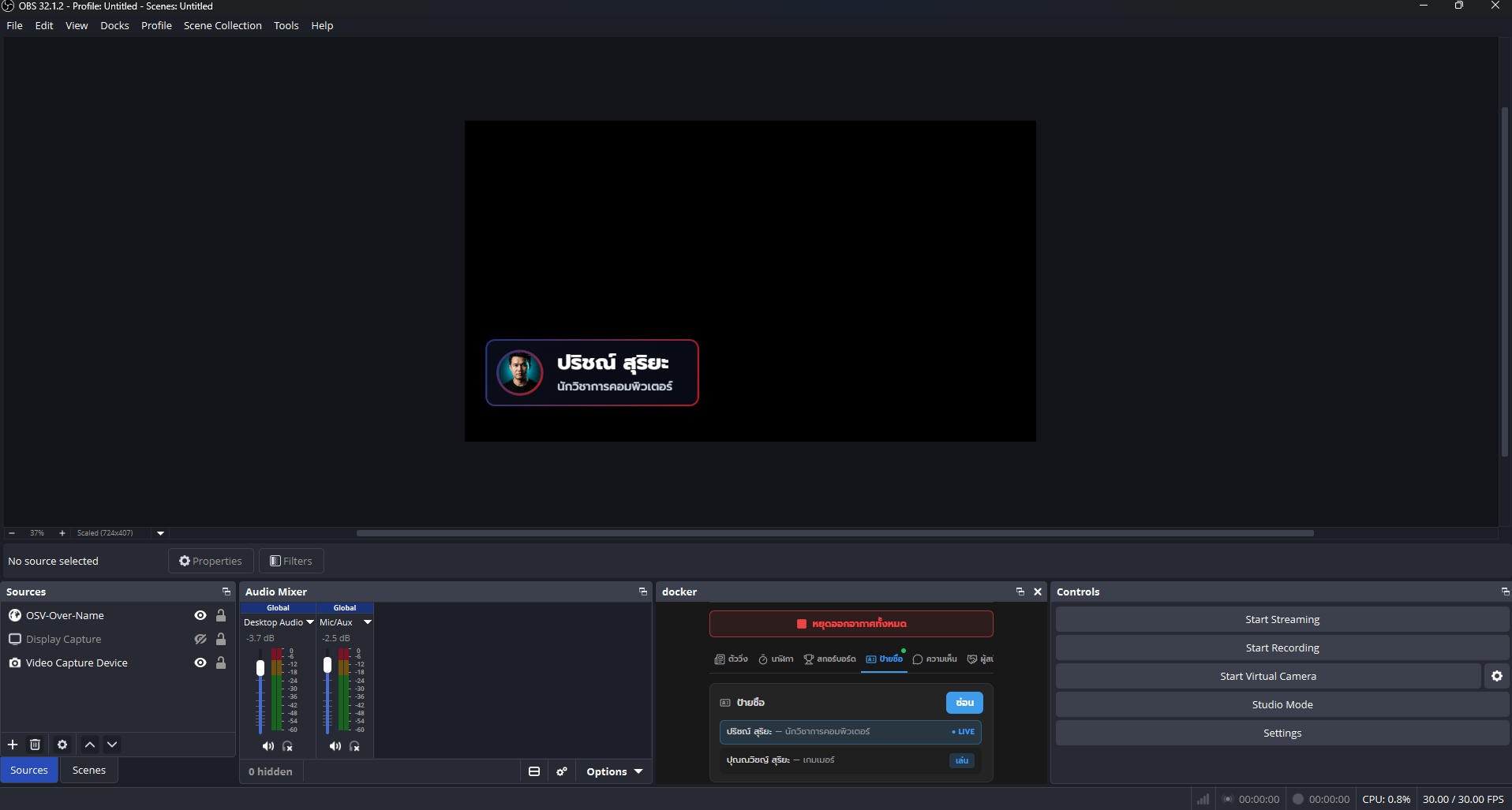
The Name Tag overlay is a Browser Source like any other OBS element, but it's driven live from the web control panel instead of being edited frame by frame.
- Add the overlay URL as a Browser Source in your OBS Scene, sized to match your canvas.
- Layer it above your webcam or game capture in the Scene so it reads as a proper lower third.
- Use Studio Mode to prep a row and preview it before it goes to the live Program view.
- Pin the /studio/nametag control panel inside OBS itself with a Custom Browser Dock, so you can add a guest and hit Play without ever tabbing out of OBS.
- Because updates push over WebSocket, the Browser Source never needs a manual refresh, even mid-stream.
- Combine it with the Ticker or Football modules in the same scene for a full broadcast look.
Use cases
School and amateur football broadcasts
Tag players, coaches, or commentators with name and position during a 7-a-side or futsal match, without a broadcast budget.
Church and community event media
Introduce a speaker, worship leader, or guest with their name and role the moment they step up, then auto-hide it after a few seconds.
New streamers and talk shows
Give a co-host or guest a proper lower third without learning video editing — prep the row once, click Play when they're introduced.
Podcast video recordings
Label each participant on camera so viewers watching the video version always know who's talking.
Event and competition organizers
Tag judges, hosts, or award recipients with a consistent branded frame across the whole event.
Developers evaluating the platform
See the real-time WebSocket architecture in action — change a row in the control panel and watch it update on the OBS overlay instantly.
Best practices
- DesignKeep the gradient's two colors close in contrast to your frame so the name text stays readable at broadcast size.
- DesignUse the ticket or ribbon frame for sports and competitive content, and frosted-glass for a more modern talk-show look.
- PerformanceUpload logo images at roughly the display size you need — the overlay renders them as-is, so oversized files just add load time.
- PerformancePrep all your rows before you go live so triggering a name tag during the show is a single click, not data entry.
- MobilePreview your anchor and offset choices on the control panel's OBS preview before the show, since fine X/Y positioning is easiest to judge on a larger screen first.
- StreamingSet a short auto-hide timer (5-10 seconds) for fast-paced intros, and 0 (manual hide) for long-form interviews where the name should stay up.
- StreamingAnchor the name tag opposite your webcam or main graphic so the two never overlap in the Scene.
- DesignMatch your frame and gradient choice across the Name Tag, Ticker, and Football modules for a consistent on-screen brand.
Frequently asked questions
Is the OBS Name Tag overlay free to use?+
Yes. OBS Overlay Studio is free right now — sign up at /signup and use the Name Tag module along with the other five modules and the Layer Editor at no cost.
Do I need to refresh OBS every time I change a name?+
No. Changes made in the /studio/nametag control panel push over WebSocket and appear on the Browser Source instantly — no refresh needed.
Can I use my own logo instead of the built-in frames?+
Yes, you can upload a logo or profile photo per row, and you can also upload a completely custom SVG frame instead of using the default, ribbon, ticket, or frosted-glass presets.
How many name tags can I add?+
There's no limit on rows — add, edit, or delete as many as you need for your guest list or lineup.
Does the name tag disappear on its own?+
Only if you set an auto-hide timer in seconds. Set it to 0 and the name tag stays on screen until you click Play again or hide it manually.
Can I control the name tag without leaving OBS?+
Yes — pin the control panel inside OBS Studio itself using the Custom Browser Dock at /dock (Docks → Custom Browser Docks in OBS), so you can trigger a name tag without alt-tabbing out.
Where do I position the name tag on screen?+
Choose an anchor of bottom-left, bottom-center, or bottom-right, then fine-tune the exact spot with additional X and Y pixel offsets.
Can I change the colors to match my brand?+
Yes. The name tag uses a two-color gradient (a start color and an end color), plus a font choice and a Scale slider for size.
What is this called in broadcast terms?+
It's the classic 'lower third' — a name and title graphic shown at the bottom of the screen while someone is on camera.
Where do I get the overlay URL for OBS?+
Each account gets its own overlay URL under /studio/nametag; add it as a Browser Source in OBS and it starts receiving live updates immediately.
Related modules
Available from /studio/nametag after logging in