
Sponsor Logo Overlay for OBS — Ticker & Slider, Free
Upload sponsor logos once, then choose a scrolling Ticker or a rotating Slider — click Start and the strip appears on screen instantly, no OBS refresh needed.
Put your sponsors on screen, professionally, in seconds
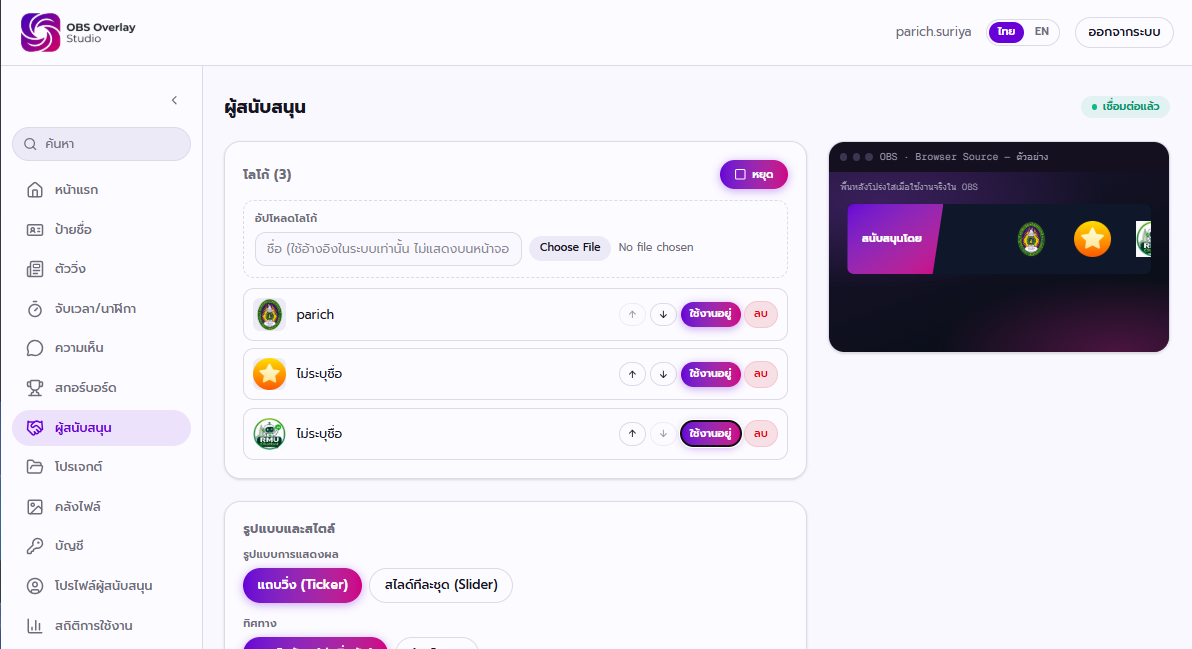
- Ticker or Slider — pick the display style that fits your event
- Turn any logo on or off without deleting it
- Reorder sponsors by priority in one click
- Add a text label like 'Sponsored by' next to the logos
- Grayscale mode for a clean, uniform brand strip
Overview
- What it is
- The Sponsors module is a logo strip overlay for OBS that displays your partners, clients, and sponsors as either a continuous scrolling ticker or a rotating slider.
- What it's for
- Use it to give sponsors, donors, and partner organizations consistent, professional screen time throughout a broadcast without editing video or building overlays in a separate app.
- Who it's for
- Built for anyone running a live production with sponsors to credit — from a school football match to a conference livestream to an esports tournament broadcast.
- The problem it solves
- Crediting sponsors usually means a static image baked into a scene, or scrambling to swap logos between segments. The Sponsors module keeps every logo controllable from one panel while the broadcast is live.
Features
Ticker theme
Displays all enabled sponsor logos in a single continuous scrolling strip that moves right-to-left or left-to-right at a speed you set in pixels per second.
Every sponsor gets equal, continuous visibility without the screen ever going static.
Example: A running strip of 8 local shop logos scrolling steadily along the bottom of a school futsal broadcast.
Slider theme
Shows a fixed number of logos at once, holds them for a set number of seconds, then automatically rotates to the next set using a slide or fade transition.
Gives each sponsor a larger, more prominent moment on screen instead of sharing space in one long strip.
Example: 3 logos shown at a time, each set holding for 6 seconds with a fade transition, cycling through 12 sponsors during a conference livestream.
Enable or disable without deleting
Every uploaded logo has its own on/off toggle, so you can pull a sponsor out of rotation temporarily and bring it back later without re-uploading.
Handles last-minute sponsor changes or tiered sponsorship packages without losing your logo library.
Example: Switching off a title sponsor's logo once their segment ends, while 5 supporting sponsors stay active.
Reordering
Move any logo up or down in the list to control display order — useful for putting title sponsors first.
Lets you reflect sponsorship tiers (title, gold, supporting) visually just by order.
Example: Moving a tournament's title sponsor to the top of the list so it always appears first in the ticker loop.
Styling controls
Adjust overall Scale, spacing between logos, background color, an optional text label chip like 'Sponsored by', and a grayscale toggle.
Match the strip's look to your broadcast's branding without needing a design tool.
Example: Setting a semi-transparent dark background with an 'Our Partners' label chip and grayscale logos for a uniform, understated look.
Direction control
Choose whether the ticker or slider progresses right-to-left (default) or left-to-right.
Fits the strip to whichever side of the screen it sits on for a more natural reading motion.
Example: Switching to left-to-right when the sponsor strip sits on the right side of a scoreboard layout.
How it works
- 1Upload your sponsor logos — Add each partner or sponsor logo to the module — they build into a reusable list you can enable or disable at any time.
- 2Choose Ticker or Slider — Pick the display theme that fits the event: continuous scroll for a steady presence, or a slider for a rotating spotlight.
- 3Reorder and adjust styling — Arrange logos by priority, then set scale, spacing, background, label, and grayscale to match your broadcast's look.
- 4Click Start — The sponsor strip appears on the overlay instantly — no OBS refresh required.
OBS Studio integration
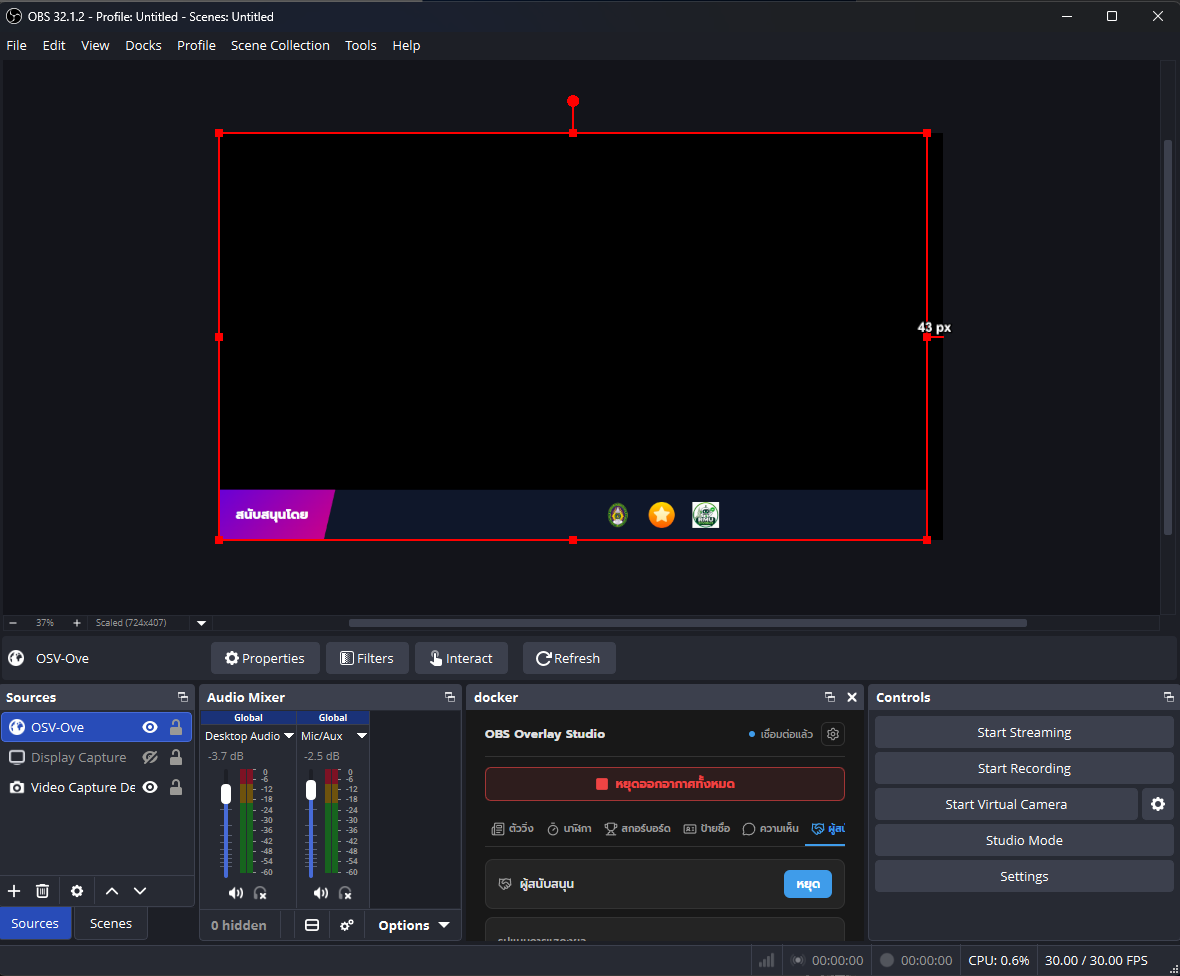
The Sponsors overlay is a Browser Source like every other OBS Overlay Studio module, so it drops straight into your existing OBS scenes.
- Add the Sponsors overlay URL as a Browser Source and position or resize it anywhere in your Scene — bottom banner, side strip, or full-width footer.
- Layer it under a scoreboard, name tag, or ticker overlay in the same Scene for a complete broadcast composition.
- Use OBS Studio Mode to preview a new logo order or theme change before it goes live to your Program output.
- Pin the control panel inside OBS itself with the OBS Custom Browser Dock (/dock) — start, stop, or toggle a sponsor logo without ever Alt+Tabbing out to a browser.
- Because updates push over WebSocket, switching from Ticker to Slider mid-broadcast doesn't require reloading the Browser Source.
- Works alongside multiple other overlay modules active in the same scene collection without conflict.
Use cases
School and amateur sports sponsors
Credit local shops and businesses that sponsor a 7-a-side football or futsal match alongside the live scoreboard, without a static graphic baked into the broadcast.
Conference and seminar partners
Rotate partner and exhibitor logos during breaks or alongside a speaker feed, giving each sponsor a clean, professional moment on screen.
Esports tournament sponsors
Run a continuous ticker of tournament sponsors during matches, then switch to a slider between rounds to spotlight higher-tier sponsors longer.
Church and community event partners
Acknowledge partner organizations and donors during a livestreamed service or community event with a tasteful, low-key logo strip.
Product launch and podcast sponsor credits
Give a paid sponsor segment its own visible moment during a livestreamed product launch or podcast recording, without editing it in after the fact.
Multi-tier sponsorship packages
Use ordering and enable/disable to reflect title, gold, and supporting sponsor tiers, updating instantly as sponsorship deals change mid-season or mid-event.
Best practices
- DesignKeep the background either fully transparent or a low-opacity dark bar so sponsor logos stay legible over any camera or gameplay footage behind them.
- DesignUse the grayscale toggle when logos come in clashing colors — it keeps the strip visually consistent even with a dozen different brands.
- DesignAdd a short label chip like 'Sponsored by' or 'Our Partners' so viewers immediately understand what the strip is, especially on a first-time broadcast.
- PerformanceOn Ticker theme, keep scroll speed moderate — too fast makes logos unreadable, too slow makes the strip feel stale during a long broadcast.
- PerformanceOn Slider theme, match seconds-per-set to how many logos you have so every sponsor gets a fair, predictable amount of screen time.
- MobileIf viewers watch on phones, favor Slider with fewer logos per set over a dense Ticker — small scrolling logos are hard to read on a small screen.
- MobileIncrease Scale slightly for streams optimized for mobile viewing so individual logos stay recognizable at a smaller player size.
- StreamingUse the OBS Custom Browser Dock to toggle the sponsor strip on and off between segments without switching Scenes or breaking your stream layout.
Frequently asked questions
Is the OBS Sponsors overlay free to use?+
Yes. OBS Overlay Studio is free to sign up and use right now, including the Sponsors module. Create an account at /signup and the module is ready to configure at /studio/sponsors.
What's the difference between Ticker and Slider themes?+
Ticker scrolls all enabled logos continuously in one strip at a speed you set. Slider shows a fixed number of logos at a time, holds them for a set number of seconds, then rotates to the next set with a slide or fade transition. Ticker suits a steady, always-visible presence; Slider suits giving each sponsor a bigger, dedicated moment.
Can I temporarily hide a sponsor without deleting their logo?+
Yes. Every uploaded logo has its own enable/disable toggle, so you can pull a sponsor out of rotation and bring it back later without re-uploading.
How do I control the order sponsors appear in?+
Use the up and down reorder buttons in the sponsor list to move any logo higher or lower — useful for putting title sponsors first.
Do I need to refresh OBS after changing something?+
No. Changes push over WebSocket to the overlay instantly — click Start and the strip appears on screen right away, with no Browser Source refresh needed.
Can I control the sponsor overlay without leaving OBS?+
Yes. Pin the control panel inside OBS Studio using the OBS Custom Browser Dock (/dock) under Docks → Custom Browser Docks, so you can start, stop, or toggle logos without Alt+Tabbing to a browser.
Can I adjust how many logos show at once in Slider mode?+
Yes. Slider theme lets you set how many logos are visible at once, how many seconds each set holds before rotating, and whether the transition is a slide or a fade.
Can I change the scroll direction?+
Yes. Both Ticker and Slider support right-to-left (default) or left-to-right direction.
Will sponsor logos look consistent even if they're different colors and shapes?+
Use the grayscale toggle to unify color, and adjust spacing and Scale so different logo aspect ratios sit evenly in the strip.
Where do I set up the Sponsors overlay in OBS?+
Add the overlay URL from /studio/sponsors as a Browser Source in your OBS Scene, same as any other OBS Overlay Studio module — see the main docs setup guide for the general Browser Source steps.
Related modules
Available from /studio/sponsors after logging in