
Show Viewer Comments Live on Your OBS Stream
Queue up comments from your audience, pick the ones worth featuring, and show them on your OBS overlay in a styled card. Updates land on screen the instant you click — no chat bot, no manual OBS refresh.
Turn viewer comments into a clean on-screen moment
- Feature one comment at a time in a clean, styled card
- Play any comment on demand, or click Next to advance through the queue
- Every change appears on the OBS overlay instantly, over WebSocket
- Run the whole queue from inside OBS with the Custom Browser Dock
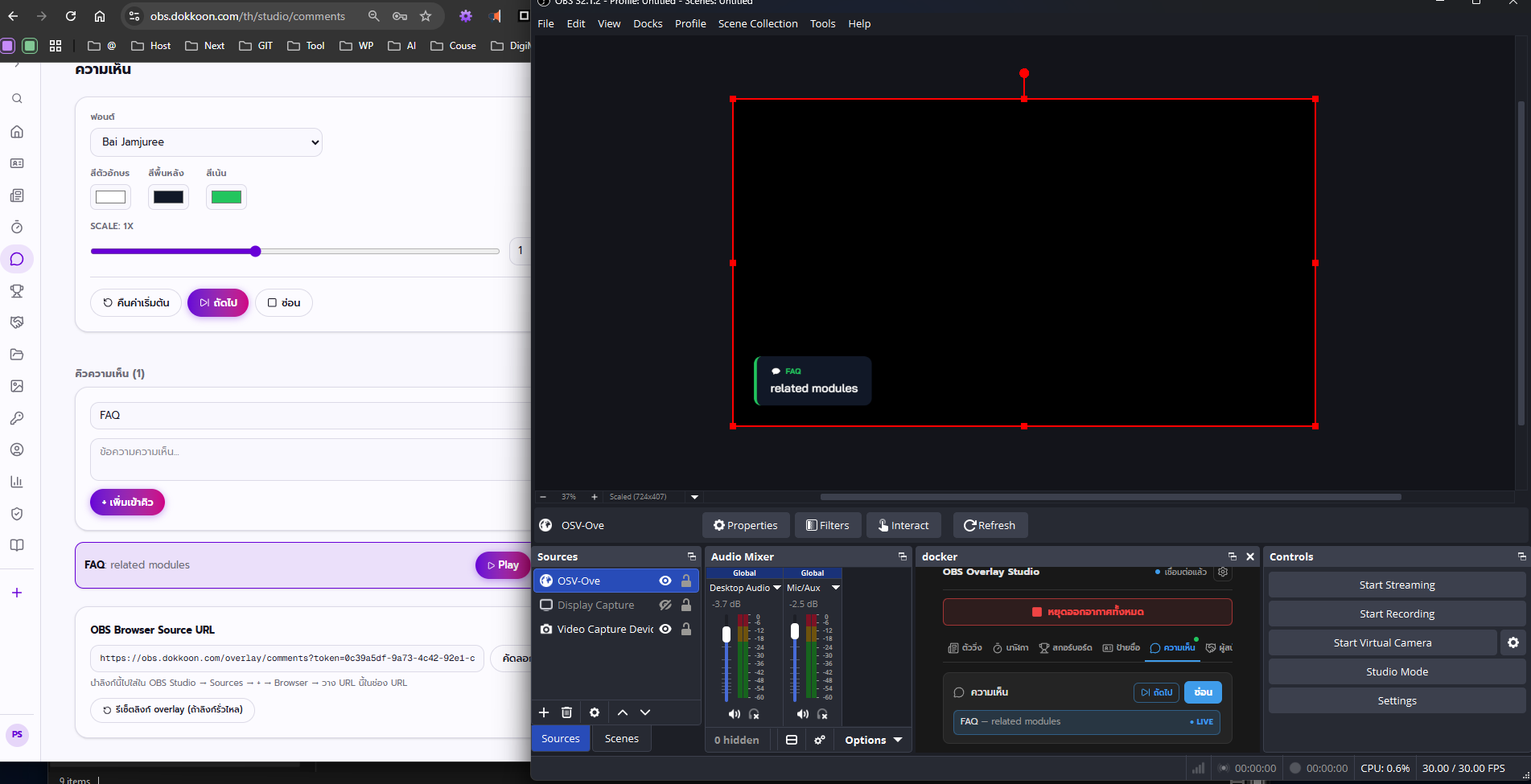
Overview
- What it is
- The Comments module is a manually curated queue of viewer comments — each entry holds a commenter name and their message — that you display one at a time on your OBS overlay. You add comments yourself, in the order and combination you choose, so nothing goes on screen you haven't reviewed.
- What it's for
- Use it to spotlight questions, shoutouts, or reactions from your audience during a stream, podcast recording, webinar, or live event. It replaces the awkward workaround of reading chat out loud or pasting comments into a slide deck mid-broadcast.
- Who it's for
- Built for streamers, podcast hosts, webinar presenters, and event or church media teams who want real audience comments to have a proper moment on screen. It's for anyone doing curated Q&A or shoutouts, not automatic live-chat scraping.
- The problem it solves
- Chat scrolls past faster than viewers can read it, and there's no clean way to spotlight one comment without breaking your stream's flow. This module lets you pick a comment, put it on screen with one click, and clear it just as fast — without ever leaving OBS.
Features
Manually curated queue
Add comments to a queue with a commenter name and message field, sourced from wherever they actually came from — live chat, a submission form, DMs, anywhere. Comments stay in the queue until you play or remove them, so you can build it up over time.
You control exactly which comments get airtime, so nothing off-topic or inappropriate ever reaches the screen.
Example: A podcast host copies five listener questions from a Discord channel into the queue before going live.
Play any comment on demand
Click Play on any entry in the queue to put it on screen immediately, regardless of where it sits in the list. There's no forced order — you decide what the audience sees and when.
You're never locked into a strict sequence, so you can jump straight to the best comment the moment it becomes relevant.
Example: A guest mentions a topic on stream, and the host immediately plays a matching viewer question from further down the queue.
Next to auto-advance
Click Next to move to the following comment in the queue without picking it manually each time. It's built for fast-paced segments where you're working through a list in order.
Keeps pacing tight during a rapid-fire Q&A segment instead of hunting through the queue between questions.
Example: During a 10-minute AMA segment, the host just clicks Next after answering each question.
Full style control
Set the font, text color, background color, and an accent color for the comment card, plus a Scale slider to resize the whole thing. It's the same style-controls pattern used across every module in the app.
You can match the comment card to your stream's branding instead of shipping with a generic default look.
Example: A church media team sets the accent color to match their sermon series graphics.
Instant hide
Hide the active comment from the overlay the moment you're done with it, with no OBS-side refresh required. The overlay simply clears, ready for the next comment or scene.
You can clear the screen right before a transition, keeping cuts between segments clean.
Example: The host hides the current comment right before cutting to a new camera angle.
Real-time WebSocket sync
Every action — adding a comment, clicking Play or Next, adjusting a style setting — pushes to the OBS overlay over WebSocket the instant you make it. The overlay never needs to poll or refresh to catch up.
There's no delay between clicking in the control panel and seeing the result live on stream.
Example: The host adds a brand-new comment mid-stream and has it playing on screen within a second.
How it works
- 1Add comments to the queue — Type in the commenter's name and their comment text, and add as many as you like before or during the stream. Build the whole list ahead of time or keep adding on the fly.
- 2Click Play to feature one — Pick whichever comment is worth showing right now and click Play. It appears on the OBS overlay instantly, in whatever order makes sense for the moment.
- 3Click Next to advance — Move through the queue in order with a single click when you're running a fast Q&A or shoutout segment. No need to hunt for the next entry.
- 4Style the card — Adjust font, text and background color, accent color, and Scale so the comment card matches the rest of your stream layout.
- 5Hide when done — Clear the comment from screen the moment its moment has passed, instantly and without touching OBS.
OBS Studio integration
The Comments overlay is a standard transparent Browser Source, so it drops into any OBS scene exactly like any other layer. There's nothing OBS-specific to configure beyond adding the source once.
- Add your account's Comments overlay URL as a Browser Source and position it anywhere in your Scene.
- Layer it above your camera or gameplay capture — the background stays fully transparent, so nothing else on screen gets blocked.
- Use Studio Mode to line up the next comment card in your preview scene before pushing it live to Program.
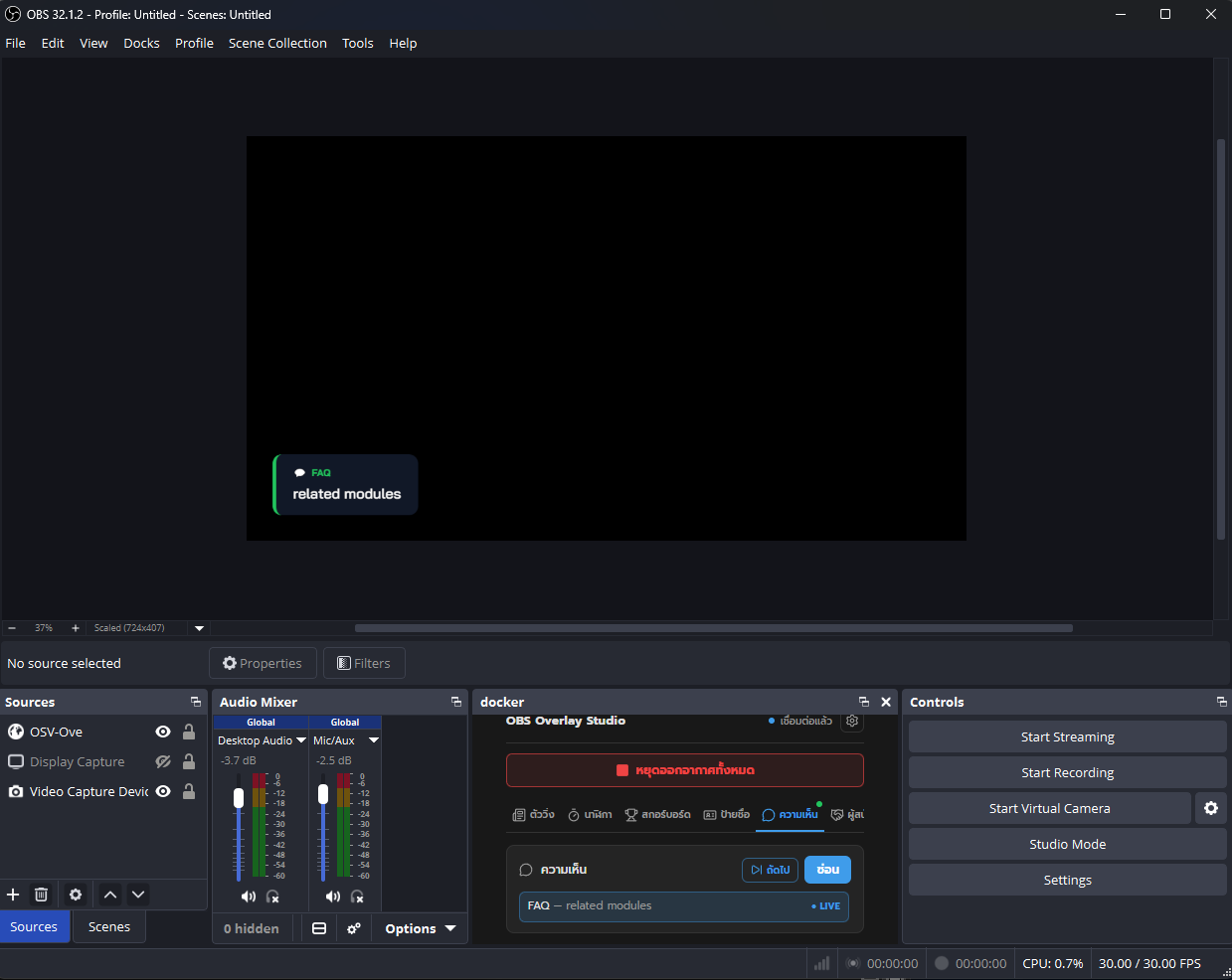
- Pin the compact control panel inside OBS itself with the OBS Custom Browser Dock at /dock — Play and Next through your comment queue without ever Alt+Tabbing out of OBS.
- Duplicate the Browser Source into a second scene if you want a dedicated 'Q&A' scene alongside your main layout.
- Style changes apply live, so you can tweak the card's colors or scale mid-stream without recreating the source.
Use cases
Podcast listener Q&A
Feature listener questions pulled from Discord or a submission form, one at a time, while recording a podcast video. The host controls the pace instead of scrambling to read chat live.
Webinar audience questions
Play viewer questions from a webinar chat as a clean on-screen card instead of reading a messy chat feed out loud. Attendees see their own question typeset clearly on screen.
Stream shoutouts for new streamers
Queue up viewer shoutouts and standout comments to play between segments, with no bot integration or coding required. It's a lightweight way to make new viewers feel seen.
Community and church event Q&A
Queue questions submitted ahead of time for a guest speaker, then play them one by one during a live Q&A segment. Keeps the session moving without anyone fumbling with paper notes.
Review and reaction highlights
Highlight standout viewer reactions or reviews during a review stream or unboxing, curated ahead of time so the best comments actually get seen.
School and amateur sports commentary
Between plays in a school football or futsal broadcast, play a queued comment or shoutout from parents and fans watching at home, adding a community touch to the coverage.
Best practices
- DesignPick an accent color that contrasts with your background footage, not just the overlay's own background — comments often sit over live camera or gameplay video.
- DesignKeep the Scale slider modest when the comment card shares the screen with other overlays like a ticker or clock, so nothing overlaps or crowds the frame.
- PerformanceTrim very long comments before adding them to the queue — short, punchy text reads faster on stream than a wall of text viewers won't finish.
- PerformanceQueue up comments in batches before you go live so you're not typing into the control panel during a live segment.
- MobileIf you're curating comments from your phone between segments, keep entries short — typing long text on a mobile control panel slows you down mid-stream.
- MobileRely on the Play/Next buttons rather than scrolling a long queue on a small screen — add comments in the order you plan to use them so Next just works.
- StreamingUse the OBS Custom Browser Dock so you can Play and Next comments without switching windows and losing sight of your Scene.
- StreamingHide the comment card before a scene transition so it doesn't awkwardly linger into the next segment.
Frequently asked questions
Does this automatically pull comments from Twitch or YouTube chat?+
No — it's a manually curated queue, not an automatic chat importer. You add the commenter's name and message yourself, whether it came from live chat, a form, or somewhere else, so you fully control what appears on screen. That also means nothing off-topic or inappropriate can slip through unreviewed.
Is the Comments overlay free to use?+
Yes, OBS Overlay Studio is completely free right now. Sign up at /signup, open the Comments module at /studio/comments, and add the overlay as a Browser Source in OBS to get started.
How do I show a specific comment instead of going in order?+
Click Play on any comment in the queue and it appears on screen immediately, no matter where it sits in the list. Next is only for when you want to move through the queue in order — Play always lets you jump straight to any comment.
Can I change the look of the comment card?+
Yes. The style controls let you set the font, text color, background color, and an accent color, plus a Scale slider to resize the whole card to fit your layout.
Does the overlay update without refreshing OBS?+
Yes. Every change in the control panel — adding a comment, clicking Play or Next, adjusting style — pushes over WebSocket and appears on the OBS overlay instantly, with no Browser Source refresh needed.
Can I control the comment queue without leaving OBS?+
Yes. Pin the control panel inside OBS Studio itself using the OBS Custom Browser Dock at /dock (Docks → Custom Browser Docks), and you can Play and Next through your comment queue without Alt+Tabbing to a browser window.
How many comments can I add to the queue?+
There's no set limit — add as many comments as you need before or during your stream.
How do I remove a comment from the screen?+
Click Hide and the currently active comment disappears from the OBS overlay immediately, no OBS-side action required.
Is this good for Q&A segments or just shoutouts?+
Both work equally well. The queue and Play/Next controls handle reading through submitted audience questions in order just as well as jumping straight to a specific shoutout comment on demand.
Do I need any coding or OBS plugins to use this?+
No. It's a standard Browser Source in OBS pointed at your account's overlay URL — no plugins, scripts, or coding needed, just the same setup as any other overlay in OBS.
Related modules
Available from /studio/comments after logging in