
Free OBS Clock, Countdown & Stopwatch Overlay
Clock, Countdown, and Stopwatch in a single free module — switch modes anytime, control everything from the web, and watch it update on stream instantly.
One Overlay, Three Ways to Show Time in OBS
- Switch between Clock, Countdown, and Stopwatch without adding a new source
- Countdown and stopwatch never drift, even if your connection blips
- Show or hide it on screen in one click, no OBS refresh needed
- Style it to match your stream: font, colors, scale, 24-hour format
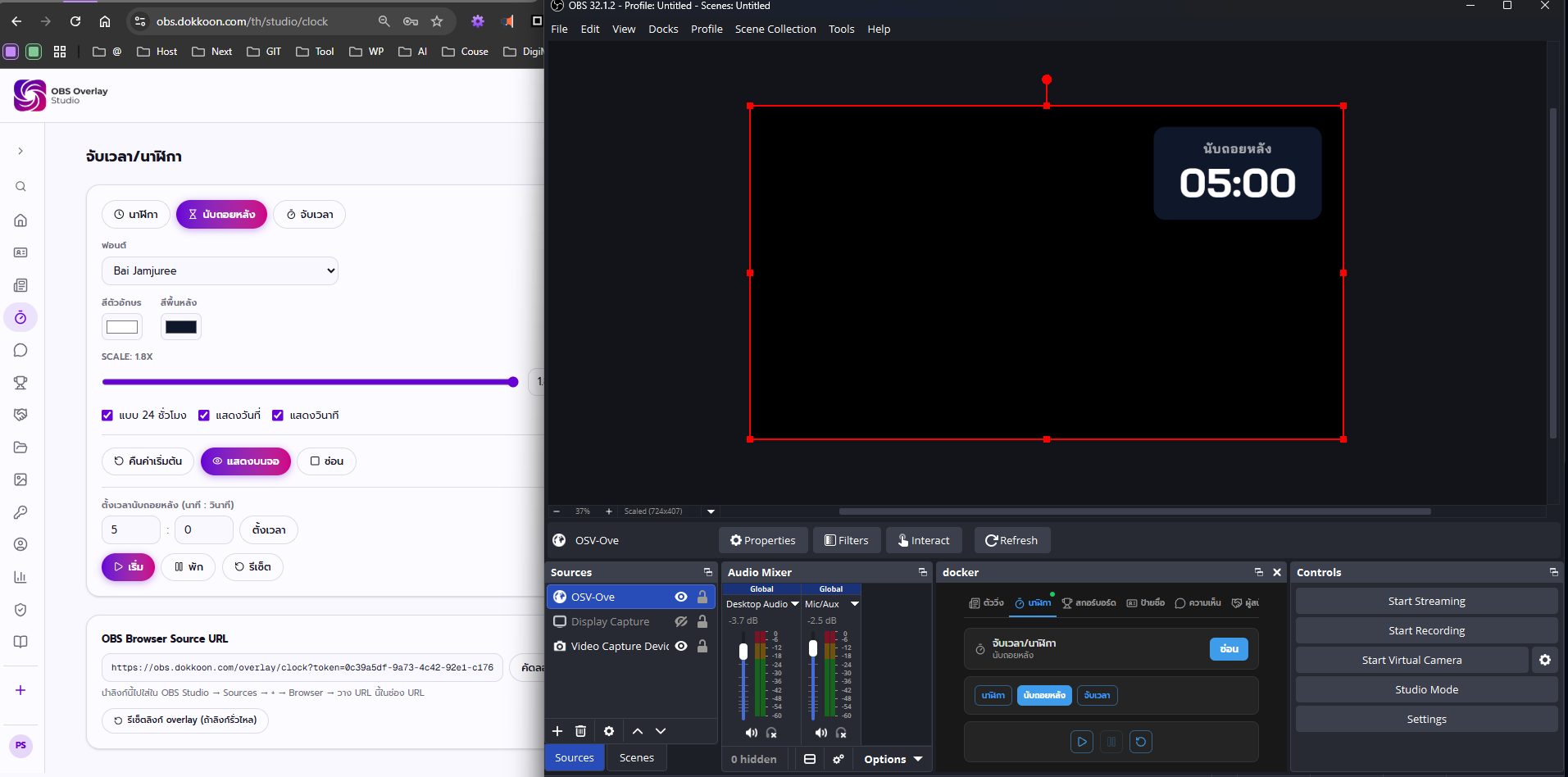
Overview
- What it is
- The Clock module is a real-time OBS overlay that can act as a live clock, a countdown timer, or a stopwatch — you pick the mode from the web control panel and it updates instantly on stream.
- What it's for
- Use it to show the current time on screen, count down to a start time (stream, match kickoff, service start), or count up an elapsed time (match duration, workout, timed round).
- Who it's for
- Built for anyone running a live production from a browser: streamers, sports and event organizers, church and community media teams, and anyone who needs an on-screen timer without touching broadcast software.
- The problem it solves
- Most OBS timer solutions are either a static image you can't update live, or a plugin you have to install and configure per scene. This module gives you one on-screen element you fully control from a normal web page, in real time.
Features
Three Modes in One Module
Clock, Countdown, and Stopwatch live in the same overlay — switch between them from the control panel without adding or removing any Browser Source in OBS.
You keep one Browser Source in your scene and reuse it for pre-show countdowns, live time-of-day, and mid-event stopwatches.
Example: Use Countdown before a church service starts, switch to Clock once you're live, then switch to Stopwatch to time a sermon or activity segment.
Timestamp-Based Timing
The overlay computes the running time itself from a timestamp sent by the server, instead of the server pushing a tick every second.
Countdown and stopwatch stay smooth even when the network lags, and a reconnecting overlay (say, after switching OBS scenes) snaps straight back to the correct time instead of drifting or resetting.
Example: If your OBS machine briefly drops Wi-Fi and reconnects mid-countdown, the timer shows the exact correct remaining time the moment it's back — no jump, no manual re-sync.
Countdown with Start/Pause/Reset
Set a duration in minutes and seconds, then control it with Start, Pause, and Reset from the web panel.
Perfect for 'stream starting soon' screens or timed segments where you need to pause and resume.
Example: Set a 10-minute countdown before kickoff, pause it if the match is delayed, then resume exactly where you left off.
Stopwatch That Counts Up
Start, pause, and reset a stopwatch counting up from zero.
Track elapsed time for anything that doesn't have a fixed end point.
Example: Time a workout segment, a Q&A block, or how long a guest has been speaking.
Style Controls Built In
Change font, text color, background color, and overlay Scale, plus toggle 24-hour format, the date, and seconds — all from the same panel.
Match the timer's look to the rest of your overlay set without editing any code.
Example: Switch to 24-hour format and hide seconds for a cleaner look during a formal event broadcast.
Instant Show/Hide
Toggle the overlay on or off on screen with a single click, without touching OBS or refreshing the Browser Source.
You can bring the timer in and out of frame on cue, live.
Example: Hide the countdown the moment you go live, then show the stopwatch again when a timed segment starts.
How it works
- 1Pick a mode — Open /studio/clock and choose Clock, Countdown, or Stopwatch from the mode tabs — you can switch anytime without losing your other settings.
- 2Set your duration (Countdown only) — Enter minutes and seconds for how long the countdown should run before you start it.
- 3Start, Pause, or Reset — Use the transport controls to start the countdown or stopwatch, pause it mid-run, or reset it back to zero or the original duration.
- 4Style it — Set font, colors, Scale, and toggle 24-hour format, date, and seconds so it matches the rest of your broadcast.
- 5Show or hide on cue — Toggle visibility any time — the overlay appears or disappears on stream instantly, no OBS refresh required.
OBS Studio integration
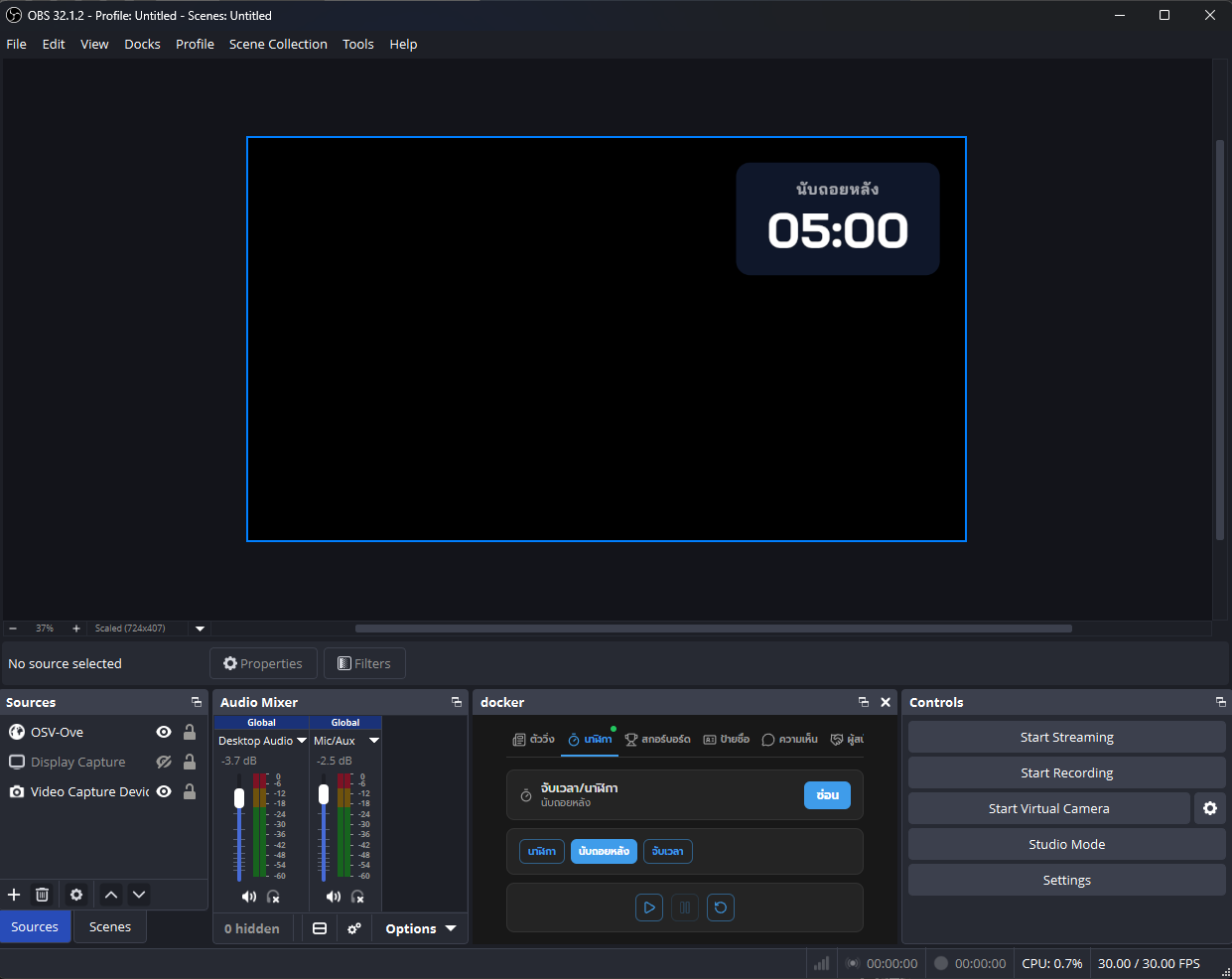
The Clock overlay is a normal Browser Source, so it behaves like any other layer in your OBS scene — resize it, position it, and layer it with your other overlays.
- Add the overlay URL as a Browser Source in any Scene — it stays transparent so it sits over your camera or game capture.
- Because it's just a layer, you can duplicate the source into multiple Scenes and keep them all in sync, since every instance connects to the same live state.
- Use OBS Studio Mode to preview a scene with the countdown running before you cut to it live.
- Pin the control panel inside OBS itself with the OBS Custom Browser Dock (/dock) — add it under Docks → Custom Browser Docks and get Start/Pause/Reset and mode switching without ever leaving OBS.
- Because Show/Hide is instant, you don't need a separate 'hide' Scene — just toggle visibility from the dock or the main panel while staying on the same Scene.
- Resize and reposition the Browser Source like any layer; the overlay's own Scale control handles the timer's internal size so text stays crisp at any Browser Source dimension.
Use cases
Pre-Match Kickoff Countdown
School and amateur football or futsal broadcasts count down to kickoff, then switch to Stopwatch to run an open match clock without a broadcast-grade production budget.
Service Start Countdown
Church and community media teams count down the minutes before a service or event begins, then hide the timer and switch to Clock once things are underway.
Stream Starting Soon Screen
New streamers and podcasters use Countdown on a starting-soon screen so viewers know exactly when the show begins, then switch straight to their normal layout.
Timed Segments and Q&A
Talk shows and podcasts use Stopwatch to keep a segment or guest Q&A on time without watching a separate clock off-screen.
Sponsor and Competition Timing
Event and competition organizers use Countdown for entry deadlines or round time limits, keeping the on-screen timer synced with sponsor and scoreboard overlays.
Workout and Activity Timers
Fitness streamers and activity hosts use Stopwatch or Countdown to time exercise rounds or timed challenges live on screen.
Best practices
- DesignKeep the background transparent or use a subtle background color so the timer reads clearly over your camera feed without covering important footage.
- DesignTurn off seconds for cleaner, more formal broadcasts like church services or ceremonies, and turn them on for anything where precision matters, like a stopwatch segment.
- PerformanceBecause timing is computed from a timestamp on the overlay side, you don't need to worry about server load or network jitter causing the timer to stutter — leave it running in the background even during scene switches.
- PerformanceIf OBS briefly loses connection to the control panel, the countdown or stopwatch resyncs to the correct time automatically the moment it reconnects — no manual reset needed.
- MobileWhen controlling the panel from a phone during a live event, use the mode tabs to jump straight to Start/Pause/Reset instead of scrolling through style settings.
- MobileSet your style (font, colors, scale) ahead of time on a larger screen, then only touch the transport controls — Start, Pause, Reset, Show — from mobile during the actual event.
- StreamingPin the Clock panel to the OBS Custom Browser Dock so you can start a countdown or show the timer without alt-tabbing out of OBS mid-stream.
- StreamingKeep the same Browser Source in your scene across Clock, Countdown, and Stopwatch modes — switching modes updates the existing overlay instantly, so you never need to add or swap sources mid-show.
Frequently asked questions
Is the OBS clock/countdown/stopwatch overlay free?+
Yes. OBS Overlay Studio is free right now, including the Clock module. Sign up at /signup, open /studio/clock, and add the overlay URL as a Browser Source in OBS.
Can I switch between clock, countdown, and stopwatch without adding a new source in OBS?+
Yes. All three modes live in the same overlay module, so you switch modes from the web control panel and the same Browser Source in OBS updates instantly — no need to add, remove, or re-point any source.
Will the countdown drift or lag if my internet connection is slow?+
No. The overlay calculates the remaining time itself from a timestamp rather than waiting for a tick from the server every second, so it stays smooth even when the connection lags.
What happens to the timer if OBS loses connection and reconnects?+
It resyncs instantly to the correct time the moment it reconnects, because it's always computing from the original timestamp rather than counting from where it last received an update.
Does the clock show the current time automatically?+
Yes. Clock mode shows the current time as soon as it's visible on screen — there's no Start button to click, unlike Countdown and Stopwatch.
Can I show 24-hour time and hide the date?+
Yes. The style controls include a 24-hour format toggle and separate show/hide toggles for the date and for seconds.
Can I control the timer from inside OBS instead of switching windows?+
Yes. Pin the panel to OBS using the OBS Custom Browser Dock (/dock) under Docks → Custom Browser Docks, so Start, Pause, Reset, and Show/Hide are all available without leaving OBS.
Is this good for timing a football or futsal match?+
Yes. Use Stopwatch as an open match clock, or Countdown for a fixed-time period, and pair it with the football scoreboard module for a full match overlay setup.
Can I pause and resume a countdown mid-run?+
Yes. Countdown supports Pause and Reset in addition to Start, so you can pause for a delay and resume exactly where you left off.
Do I need to refresh OBS to show or hide the timer?+
No. Show/Hide is instant — toggle it from the control panel and it appears or disappears on stream immediately, with no Browser Source refresh needed.
Related modules
Available from /studio/clock after logging in