
Layer Editor: Build Fully Custom OBS Overlays
The Layer Editor is a free drag-and-drop canvas for building fully custom OBS overlays — combine webcam, chat, alerts, text, images, and more, all synced live to OBS over WebSocket.
Design any overlay you can imagine
- Free — no plan, no card, no limit on projects
- 7 layer types: webcam, chat, alert, text, shape, image, audio waveform
- Real-time sync to OBS — no refresh, no re-upload
- Invite teammates to co-edit the same overlay live
- Works alongside the 6 ready-made modules, not instead of them
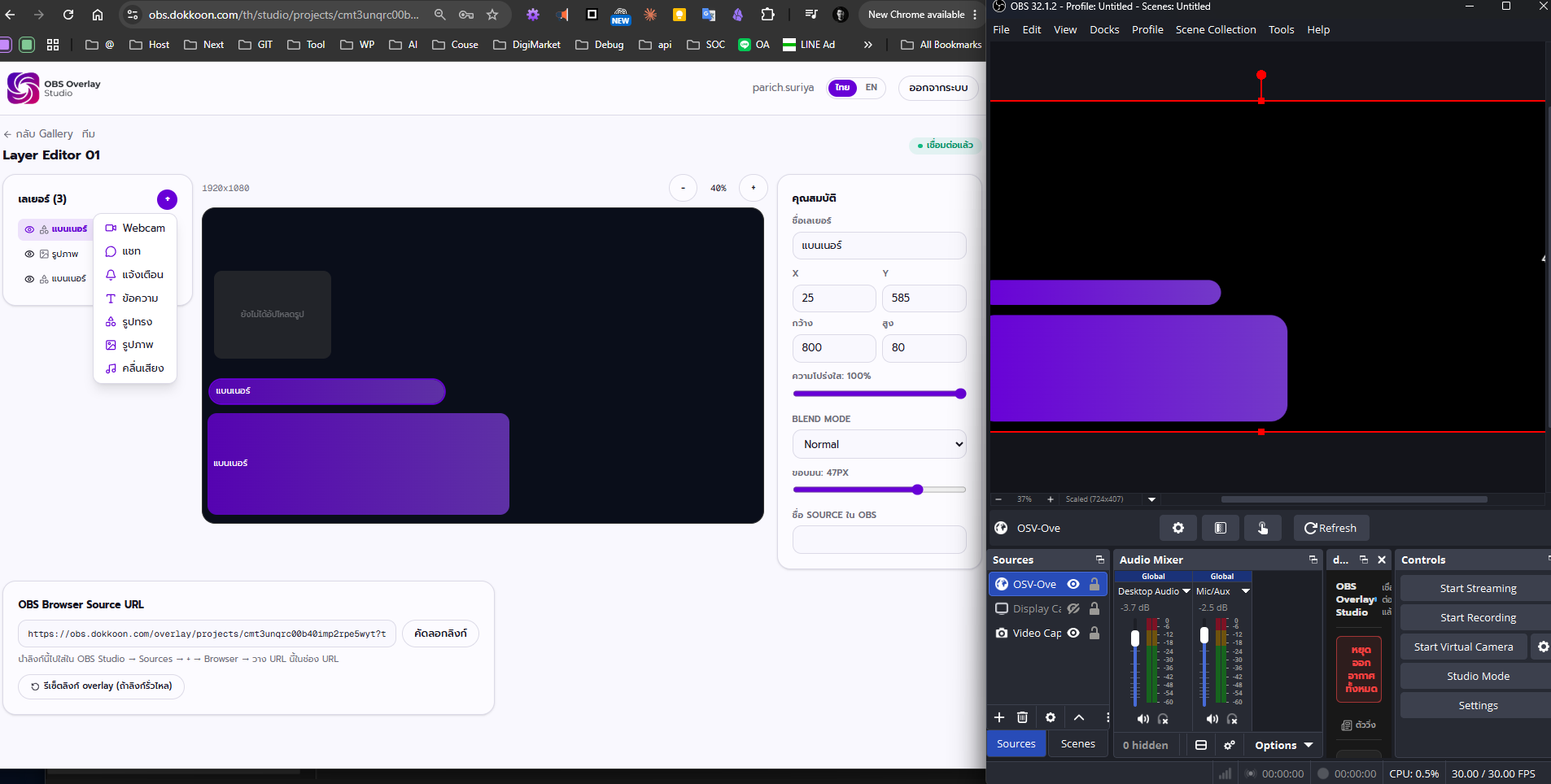
Overview
- What it is
- The Layer Editor is a free-form canvas inside OBS Overlay Studio where you build a fully custom overlay from individual layers instead of a fixed template. Each project is its own 1920×1080 canvas with its own overlay URL.
- What it's for
- Use it when the 6 ready-made modules don't quite fit — a multi-camera podcast layout, a branded frame around your football scoreboard, or a fully custom event overlay combining several elements at once.
- Who it's for
- Built for streamers and podcasters who want a unique layout, event and sponsor-heavy productions, school and church media teams that need custom branding, and developers who want to build something from scratch.
- The problem it solves
- Ready-made overlay templates are fast to set up but hard to bend into a genuinely original layout — and most free tools that let you build your own don't support a team editing the same overlay together in real time.
Features
Seven layer types
Every layer on the canvas is one of seven types: webcam, chat, alert, text, shape, image, or audio waveform. Mix and match as many as a project needs.
You're not limited to a fixed set of widgets — build the exact combination your show needs.
Example: A podcast layout with two webcam layers side by side, a chat layer underneath, and a text layer for the episode title.
Free drag-and-resize canvas
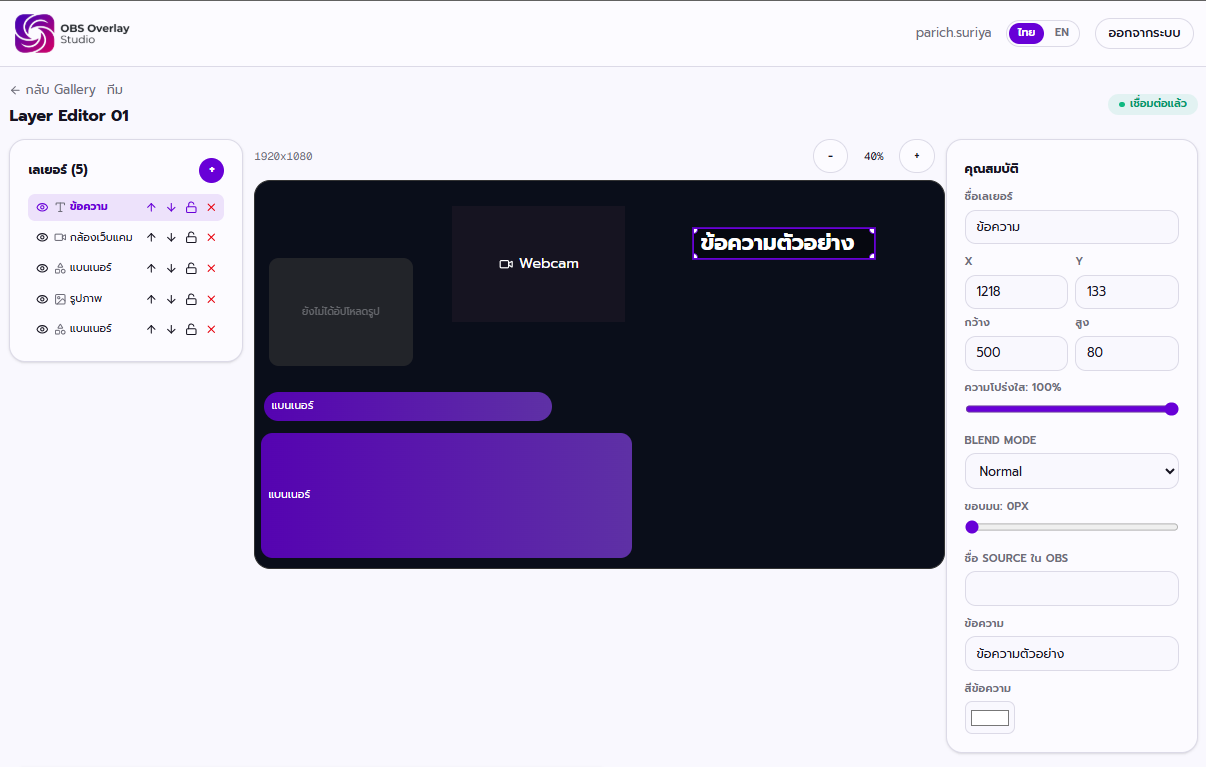
Every layer sits on a 1920×1080 canvas that you position and resize by dragging, matching a standard 1080p OBS scene pixel-for-pixel.
What you see in the editor is exactly what lands on stream — no guessing at coordinates.
Example: Drag a webcam layer into a lower-third corner, then resize it until it lines up with your camera's aspect ratio.
Per-layer styling controls
Each layer has its own opacity, blend mode, and corner radius controls, independent of every other layer on the canvas.
Fine-tune how layers blend into each other without touching anything else on the canvas.
Example: Round the corners of a webcam layer and drop its opacity slightly so it sits under a semi-transparent alert layer.
Asset Library
Upload an image once and it's stored in the project's Asset Library, ready to drop onto any image layer without re-uploading.
Saves time on projects that reuse the same logos, backgrounds, or badges across several layers.
Example: Upload a sponsor logo once, then use it in three different image layers across the overlay.
Multiple projects, each its own canvas
Create as many projects as you need; each one is an independent canvas with its own layers and its own overlay URL to add as a Browser Source in OBS.
Keep separate shows, events, or clients cleanly isolated from each other.
Example: One project for your weekly stream layout, a separate project for a one-off tournament overlay.
Real-time team collaboration
Invite teammates into a project as Editor, Moderator, or Viewer. Everyone's changes sync live over the same WebSocket connection that pushes updates to OBS.
A designer, a producer, and a moderator can all work on the same overlay at the same time without emailing files back and forth.
Example: Your designer repositions layers while your producer adjusts colors — both see each other's changes appear instantly.
How it works
- 1Create a project — Start a new project to get a blank 1920×1080 canvas — you can create as many separate projects as you need.
- 2Add and arrange layers — Add webcam, chat, alert, text, shape, image, or audio waveform layers, then drag and resize each one directly on the canvas.
- 3Style each layer — Open a layer's properties to set its opacity, blend mode, and corner radius, and pull images from the Asset Library where needed.
- 4Invite teammates (optional) — Add collaborators as Editor, Moderator, or Viewer if more than one person needs to work on the design.
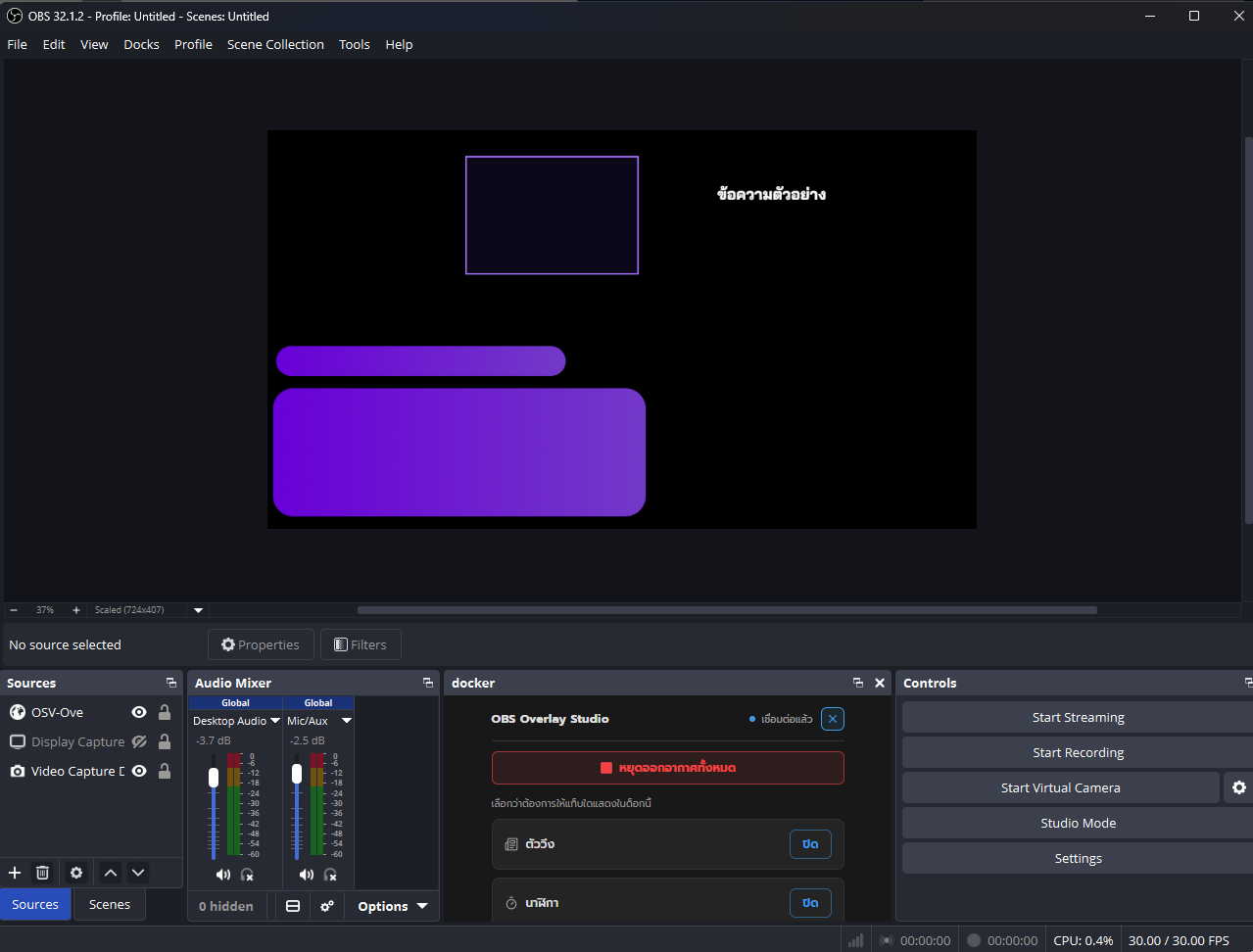
- 5Copy the overlay URL into OBS — Each project has its own overlay URL — add it as a Browser Source in OBS and every change you make in the Layer Editor appears on stream instantly.
OBS Studio integration
The Layer Editor plugs into OBS the same way every other module does: one Browser Source, one URL, live updates over WebSocket.
- Add the project's overlay URL as a single Browser Source, sized 1920×1080 to match the canvas.
- Layer the overlay into any Scene alongside your game or webcam capture — it's transparent everywhere you haven't placed a layer.
- Use Studio Mode to preview layer changes before they go live to your program output.
- Duplicate the Browser Source into multiple Scenes if the same overlay needs to appear on more than one layout.
- For the 6 ready-made modules, pin a compact control panel straight inside OBS with the Custom Browser Dock (/dock) — handy alongside a Layer Editor project running in the same show.
Use cases
Multi-camera podcast and talk show layout
Combine two or more webcam layers with a chat layer and an alert layer to build the kind of layout a fixed template can't give you.
Branded frame around the football scoreboard
Keep the ready-made football module for the score logic, and use the Layer Editor to add a custom branded frame, badges, or sponsor bar around it.
Church and community event overlays
Build a fully custom overlay for a service or event that goes beyond a simple name tag or ticker — logos, schedules, and branded backgrounds in one layout.
Sponsor-heavy event and competition overlays
Combine text, shape, and image layers to build an overlay that gives every sponsor logo its own spot, laid out exactly how the event organizer wants it.
Agencies designing for multiple clients
Keep each client's overlay in its own project, each with its own canvas and overlay URL, without their layouts ever mixing together.
Fully custom, built-from-scratch overlays
For anyone who wants to design an overlay from a blank canvas rather than start from a template, the Layer Editor is the open-ended option.
Best practices
- DesignMatch layer sizes to your actual camera and chat aspect ratios before fine-tuning position — resizing after the fact usually means redoing your styling too.
- DesignUse corner radius and opacity together rather than relying on one — a slightly lower opacity plus a rounded corner often reads as more polished than either alone.
- PerformanceKeep the number of layers on a single canvas reasonable — a leaner layer list is easier to manage live and less likely to cause layout drift during a show.
- PerformanceReuse images from the Asset Library instead of re-uploading the same logo into multiple image layers; it keeps the project lighter and easier to update later.
- MobileIf you'll ever check your overlay from a phone or tablet, preview the canvas at a smaller size — text and thin shape layers that look fine at full size can disappear at a glance on a small screen.
- MobileKeep critical text (names, scores, titles) large enough that it's still legible if a teammate is reviewing the layout on a phone before a show.
- StreamingTest the overlay's Browser Source in OBS well before you go live — confirm the canvas size matches your Scene and that transparent areas are actually transparent.
- StreamingIf a team is collaborating live during a show, agree on who holds the Editor role during the broadcast itself so two people aren't repositioning the same layer at once.
Frequently asked questions
What is the Layer Editor in OBS Overlay Studio?+
It's a free drag-and-drop canvas for building a fully custom OBS overlay from individual layers — webcam, chat, alert, text, shape, image, and audio waveform. Each project is its own 1920×1080 canvas with its own overlay URL to add as a Browser Source in OBS.
Is the Layer Editor free to use?+
Yes. OBS Overlay Studio is a free product right now, and the Layer Editor is included — no separate plan or paywall.
Do I need the Layer Editor if I already use the ready-made modules?+
Not necessarily. The Layer Editor is additive, not a replacement — most people start with the 6 ready-made modules (name tag, ticker, clock, comments, football, sponsors) and only reach for the Layer Editor when they need a layout those modules don't cover, like combining webcam, chat, and alerts in one custom design.
How many layers can I add to one canvas?+
There's no fixed cap in the editor — you can add as many layers of the seven supported types as your design needs. For a smooth editing experience, keep the layer count to what your layout actually needs.
Can my team edit the same overlay together?+
Yes. You can invite teammates into a project with an Editor, Moderator, or Viewer role, and everyone's changes sync live over the same WebSocket connection used to update OBS — so you can see each other's edits appear as they happen.
What's the difference between the Editor, Moderator, and Viewer roles?+
Editor and Moderator roles can make changes to a project (with Moderator typically used for people running the overlay live rather than designing it), while Viewer is read-only access for anyone who just needs to see the current layout.
What is the Asset Library for?+
It stores images you upload to a project so you can reuse them across multiple image layers without uploading the same file again — useful for logos, backgrounds, or badges that show up more than once in a design.
How do I get my custom overlay into OBS?+
Each Layer Editor project has its own overlay URL. Add it as a Browser Source in OBS sized 1920×1080, the same as any other module in OBS Overlay Studio.
What do opacity, blend mode, and corner radius actually control?+
They're per-layer style controls: opacity sets how transparent a layer is, blend mode changes how it visually combines with layers underneath it, and corner radius rounds a layer's corners — all set independently for each layer on the canvas.
Can I build more than one overlay design?+
Yes. You can create multiple projects, each with its own independent canvas, layers, and overlay URL — useful for running separate designs for different shows, events, or clients.
Related modules
Available from My projects after logging in